Monday.com vs Trello: which project management tool should you pick in 2026?

Updated: Sep 18
You're here to read this comparison guide on Monday.com vs Trello because:
You have been using Trello, but now tracking tasks and meeting deadlines feels cluttered.
You were enjoying Trello, but now, as the team expands or projects overlap, it is hard to manage on that dashboard that was once simple.
You’re blinking at Monday.com because it offers visibility, a more holistic view, and better tracking — but you’re not sure if it is really worth switching.
You don’t want a long feature checklist—you want to know whether it will fit your process, or you'll have to start hunting again for a better alternative.
But you're not alone here, as many of them have been there. While researching this comparison for best project management tools, I used both and reviewed real user feedback to understand where each one fits—and where it falls short.

Trello is great until you expand: Trello is great for starting and organizing tasks. But once projects overlap or approach timelines, multiple stakeholders, or departments, the dashboard feels heavy and difficult to manage.
Monday.com makes you plan things early: It asks you to set up workflows early. It could be helpful for some teams, but for others, it is more of extra work.
Visibility becomes the trade-off here: When teams expand, or work grows, they look for quick answers to find what's done, what's stuck, and what's delayed. This is where Trello often lacks, and teams explore tools like monday.com
Pricing: Trello’s free plan works well for simple boards, but once a team needs things like automations, timelines, or admin controls, costs add up with paid plans and add-ons. Monday.com's paid plans cost about $9 per seat per month, and because many features are already included, teams can end up spending a similar amount over time depending on their needs.
If you found yourself in any of these points, here is a detailed comparison guide: Monday.com vs. Trello to help make an informed decision. So, let's take a closer look at the their comparison.
Monday.com vs Trello: TL;DR
Aspect | monday.com (Work Management) | Trello |
⭐ 4.7 / 5 | ⭐ 4.4 / 5 | |
Ease of Use | Intuitive, easy to deploy | Very simple and visual |
Best For | Stage-based workflows | Kanban-style boards |
Automation | Built-in workflow automations | Butler automations |
Customization | Very high, adapts as teams grow | Limited cross-project view |
Team Collaboration | Reduces silos, single source of truth | Clear task visibility |
Organization | Structured for complex projects | Card archiving keeps boards clean |
Customer Support | Fast and responsive | Less emphasized by users |
Pricing | Free forever plan, paid plans from $5/user/month | Free 14-day trial, paid plans from $9/seat/month |
Suitable For | Growing & cross-functional teams | Small teams, basic task management |
This table might give you a snapshot of these project management tools, but it doesn't reflect the daily experience of using them. Below, we'll talk about their features, who they’re best for, what users say, and when teams usually switch.
Trello: best for individuals and small teams
It is a popular project management tool due to its Kanban-style boards and easy drag-and-drop interface. It has a simple dashboard that makes tracking work easy, specifically for solo users and small teams. You can even share board access with clients to avoid constant follow-ups.
I’ve been using Trello for a long time, mainly for client work, and it genuinely made managing projects easier. Glad I did because it is helpful for personal projects and other tasks as well; I forget at times.

Since it has a free plan, upgrading was never a concern unless I actually wanted to. It’s also easy to customise based on how you want to track work. After using it for a while, two things stood out to me the most:
An easy-to-use dashboard with categories like To-do, In progress, and Done.
A setup so simple that no guidance or onboarding is needed to get started.
However, Trello has some more amazing features, so let's look at them.
Key features
Card-based task management: You create a board for a project and add cards with relevant details for each task. I usually assign one card per task, add a due date, attach files, and tag my client. Everything related to that task stays in one place to avoid chasing updates on email or WhatsApp.
Visual workflow with drag-and-drop: This is where Trello really shines. Moving tasks from To-do to Done is quick and intuitive. There’s no need to update statuses manually– the board is enough to show progress clearly.
Butler automations for repetitive actions: Butler helps automate small, repetitive actions like moving cards, adding labels, or setting due dates. It’s not complex, but it saves time on recurring work and helps with priority tasks.
Quick setup with minimal configuration: What I like most is Trello's easy setup. You can start with a blank board and adjust as you go. There’s no learning curve or onboarding—just create your workflow the way you want and start working.
What users say about Trello
What users like?
Most of the users point to Trello's customizability and integrations, Butler for automation, Google Drive for syncing, as reasons it helped small, remote teams stay organized while scaling. The visual board format makes it easy for everyone to see who's working on what.
"Tracey Beveridge, HR Director at Personnel Checks, echoes this simplicity: Trello worked well for managing small, self-contained work, and she still sometimes uses it for personal projects, since she likes how simple it is to set up a board and start using it."
What users dislike?
Not everyone's experience was smooth, though. Some reviewers noted that automation can spiral fast if left unchecked as one team over-relied on Butler early on until it made workflows harder to follow, not easier, until they scaled the rules back.
That said, Trello is great to start with, but as work grows, some useful features sit behind paid plans, which can feel limiting for teams trying to keep things simple.
When should you use Trello?
Trello is a good fit if you find yourself in any of these:
A simple board-and-card system is enough to track work.
Tasks move smoothly through To-do, In progress, and Done stages.
Work is handled solo or within a small team.
To track personal projects or client work without any cost.
Advanced automations, reports, or other features aren’t required.
A visual, Kanban-style workflow is working for you.
Setup needs to be quick, with minimal or no steps.
Flexibility is preferred over rigid processes.
Tight on budget or prefer a free plan
monday.com: best for growing teams and complex workflow
monday.com is widely known for its advanced features that help bring structure to workflows as projects or teams grow. Many users like its organised dashboard for viewing tasks, owners, and timelines. Alongside structured views, monday.com also offers a Kanban-style board that can be customised based on how teams work.
monday.com opens with pre-set dashboard views that show project status and key details right away, helping teams gain visibility across projects without manual setup. This was especially helpful when managing multiple tasks or people.
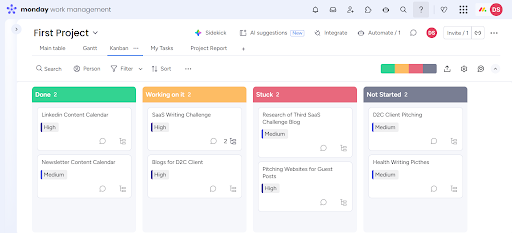
That said, the dashboard can feel overwhelming when teams work across many boards, as too many widgets and updates compete for attention at once. I experienced this myself when using it.
There were moments when it wasn’t clear what information should go into each field, and some features felt unnecessary for personal projects. While the tool offers many options, not all of them feel useful unless the workflow actually demands it.
However, for larger teams or projects involving multiple stakeholders, departments, or parallel workstreams — monday.com really shines. In those cases, the structure, visibility, and flexibility make it one of the most effective project management tool I’ve used.
"Peter, Founder & CEO at Strategic Pete, who uses monday.com for day-to-day team coordination, also noted that monday.com works well once workflows are clearly defined, but can feel overwhelming early on if too many fields or automations are added at once."
"Himanshu Agarwal, Co-founder at Zenius, shared that his team adopted monday.com because hiring workflows are multi-stage and cross-functional. Each open role is tracked as a single item with stages, owners, and automated notifications, which helps maintain visibility across teams. At the same time, he noted that monday.com can feel heavy if workflows are over-engineered, especially for non-operations team members."
It also has some amazing features, so let's take a look at them:
Key features:
Custom workflows: Workflows are built around the way teams actually work, not the other way around.
Multiple project views: Boards can be viewed as timelines, calendars, dashboards, or Kanban, depending on what’s needed.
Ownership & tracking: Every task has a clear owner, status, and due date, which reduces confusion.
Recurring tasks: It offers automated updates, status changes, and notifications to reduce manual follow-ups.
Dashboards & reporting: Progress, workload, and timelines can all be tracked in one place, especially useful for teams.
Collaboration inside tasks: Comments, files, and updates stay tied to the task, keeping communication organised.
Scales well with teams: Handles growing projects, multiple stakeholders, and cross-team work better than simple boards.
What users say about monday.com
What users like?
Users find the interface easy to use, making it simple to share tasks across a team and keep track of progress, something they consider better than any project management tool they've used before.
"Tracey Beveridge shared monday.com stood out once her business needed more structure than Trello could offer. The ability to customise workflows, build dashboards, and automate updates helped her team manage work across the organisation. While it isn’t the cheapest option, its flexibility allowed them to replace multiple tools with a single system."
What users dislike?
Some users pointed to the learning curve once workflows get complex — the platform's flexibility can backfire without team alignment, since it needs deliberate setup, and certain advanced features take longer to learn than expected.
When you should use Monday.com?
Go for monday.com if you catch yourself in any of these:
Work now involves multiple people or teams
Tasks need ownership, timelines, or a more organised Kanban-style interface.
Projects require advanced features more than a simple board view.
Custom workflows are needed as processes have evolved.
Progress has to be tracked through reports or dashboards.
Work updates should be in one place.
Structure and visibility matter more than quick setup.
The tool needs to scale as the work or project grows.
There is an obvious question users often ask: why do other people switch to tools, irrespective of whichever one they are currently using? Well, the question is valid as long as you have used either of these project management software. But when you do, it's easy to answer "why".
However, if you haven't explored both, let me explain in fewer bullets why one switches tools.

When teams usually switch tools?
Boards start feeling crowded or hard to manage.
The team or workload has grown.
Work involves multiple departments or stakeholders.
There’s a need for more advanced features.
The tool works for tasks, but no longer fits the overall process.
The free plan is not fulfilling requirements, so there is a need for a paid plan
Final checklist: which tool should you choose?
Choose Trello if:
Work is mostly about tracking tasks, not managing processes.
Getting started quickly matters more than a detailed setup.
A simple, visual board is all you need to stay organised.
Choose monday.com if:
Work involves processes, not just tasks.
You need clear ownership, timelines, and visibility.
Projects or teams are growing, or work is shared across people.
No tool is best for everyone. The right choice depends on your requirements and workflow, because both tools serve different needs. It’s less about features and more about how well a tool fits your process and helps you manage day-to-day work.
Trying the free plans or trials of both tools is a good way to see what actually works for you before committing.
Personally, I’m using Trello right now because it fits my current projects and keeps things simple. I plan to stick with it unless my boards start feeling cluttered or hard to manage. But for teams of 15+ people, that’s usually where monday.com starts making a real difference. If your work hasn’t reached that stage yet, Trello is more than enough—just like it is for me today.

FAQs
1. What is the main use of Trello?
The main use of Trello is to make project management and collaboration easier when working on a budget or in a small team.
2. What is better, Monday.com or Trello?
It completely depends on your requirements, process, and team size. Trello works for small teams up to 15, making project management easier with smooth collaboration. However, Monday.com is suitable for large teams or when multiple projects/stakeholders are involved
3. What are the disadvantages of Trello?
The disadvantage of using Trello is that it becomes cluttered as the team or project grows, so you need an alternative tool like monday.com for better management and collaboration.
4. What is the best tool for project management?
There are various project management tools; however, the best include Monday.com and Trello.
5. Is Trello cheaper than monday.com?
Trello is the cheaper option. It offers a free plan for users who don't need advanced features, and its entry-level paid plans start at around $5–$6 per user per month. In comparison, monday.com starts at $9–$12 per user per month and requires a minimum of three users on paid plans. While monday.com includes more advanced features, Trello is the more budget-friendly choice for individuals and small teams.
Follow Divya on LinkedIn for more practical insights on project management and productivity.


Comments